BITGET · SIGNUP
Bitget Signup Guide
Create the account, check MTOWN and continue to identity verification.
Referral code MTOWN20% fee discountOfficial-source workflow
STEP BY STEP
What to do in order
Button names and layout can change as the exchange updates its app and website. The live account screen is the final reference.
Reviewed Aug 31, 2026Official-source links checkedLive account screen is final
STEP 01
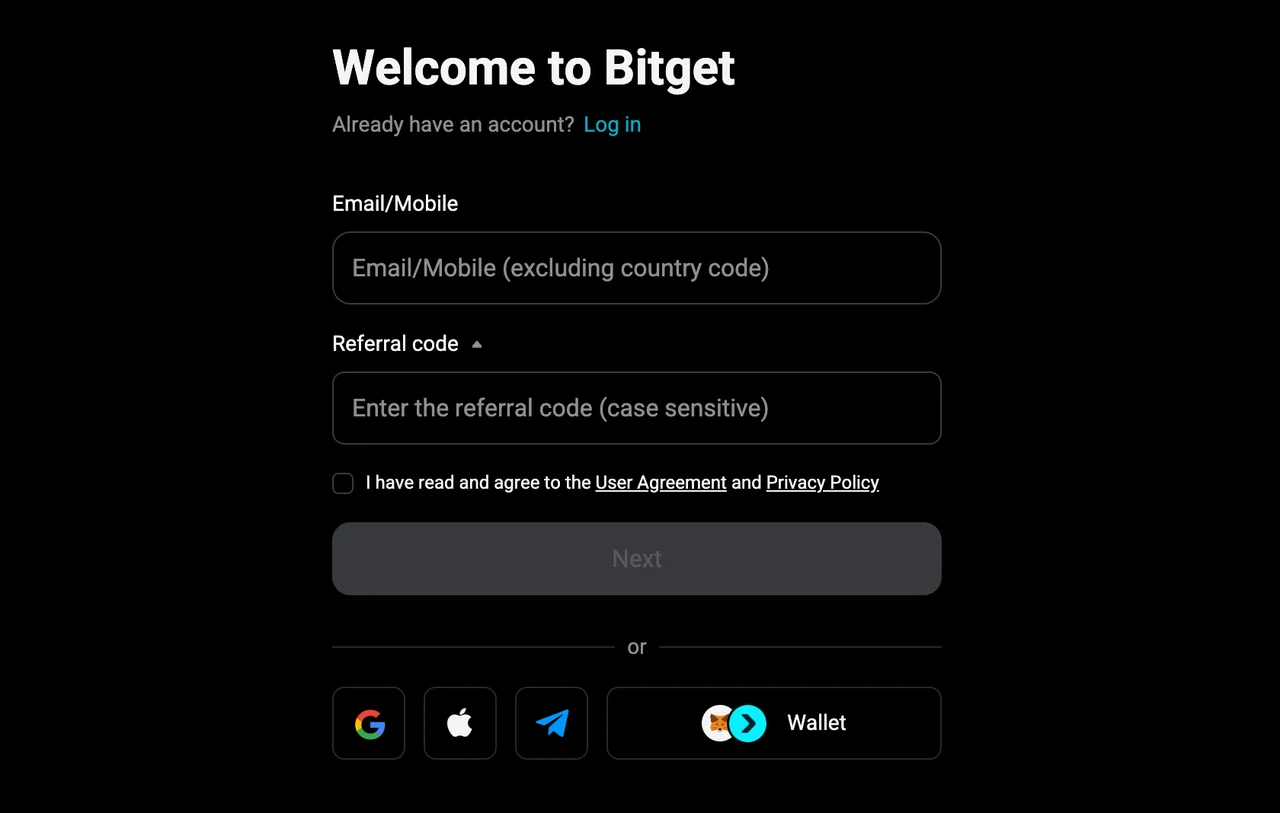
Open the MTOWN link
Use the official Bitget partner URL and confirm the bitget.com destination.
STEP 02
Choose email or mobile
Enter a long-term contact method.
STEP 03
Check MTOWN
Verify the referral field if it appears in the registration form.
STEP 04
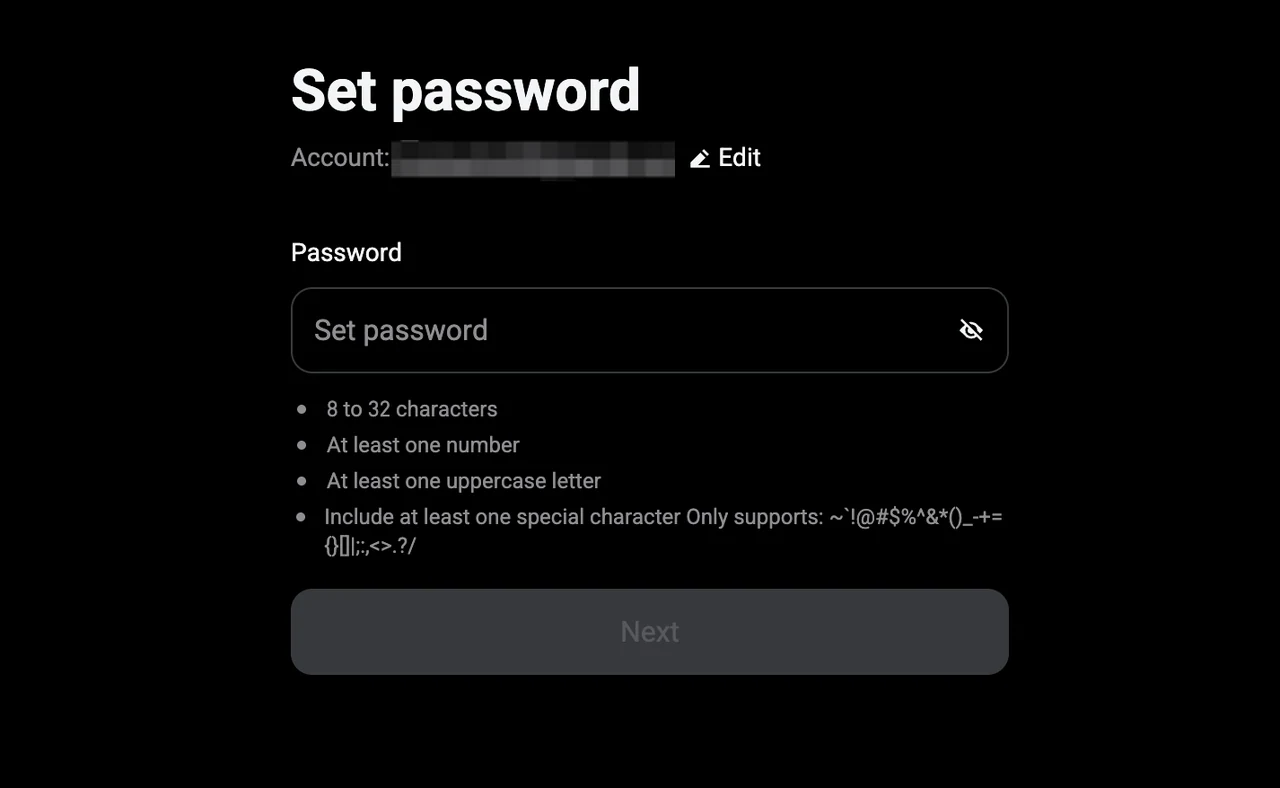
Create a password
Follow Bitget password rules and do not reuse credentials.
STEP 05
Enter the code
Complete email or SMS verification.
STEP 06
Set 2FA and continue to KYC
Add a second factor before funding the account.
Official reference
We use the exchange's own help content as the baseline and rewrite the workflow for faster scanning.
Open Bitget official documentation →Bitget screen walkthrough